Using cashier software is no longer an optional step for owners of stores, restaurants, and cafés. It has become an essential part of managing any business that wants to work efficiently, reduce errors, and get a clear picture of sales, inventory, and orders. In the past, store owners relied on paper ledgers, manual spreadsheets, or a traditional cash register just to record sales. Today the market is faster, customers expect more, and competition is higher, which makes relying on a modern point of sale system a real necessity.
An integrated point of sale system helps you manage daily sales, track inventory, organise staff, monitor expenses, issue invoices, receive orders, and analyse business performance from one place. Most importantly, a good POS system does not just record the invoice; it gives you a clear view of what is happening inside your store in real time.
In this guide, you will learn how to start using a point of sale system step by step, from creating an account and setting up the store, through adding products, branches, and cashiers, to managing orders, customers, delivery, and reports. We will also show how a modern solution like Alcashier can help business owners build a more organised and professional sales operation, whether the business is a small store, a restaurant, a café, a kiosk, or a store connected to a website.
Manage your sales and inventory in seconds with Alcashier!
Control sales, inventory and users in moments, and give your business an integrated system that runs smoothly without complexity.
Create your store for freeWhat is cashier software, or a point of sale system?
Cashier software is a digital system that helps a business owner carry out and manage sales through an easy-to-use screen. It is also known as a point of sale system or POS software, short for Point of Sale, meaning the point where the purchase takes place between the customer and the store.
But the modern idea of a point of sale system has become much bigger than just recording sales. A modern system combines sales, inventory, invoices, customers, staff, reports, expenses, branches, and sometimes the website in one platform. So when a business owner looks for sales management software, they are usually not looking for an invoicing tool alone, but for a system that helps them run the whole business in an easier and more accurate way.
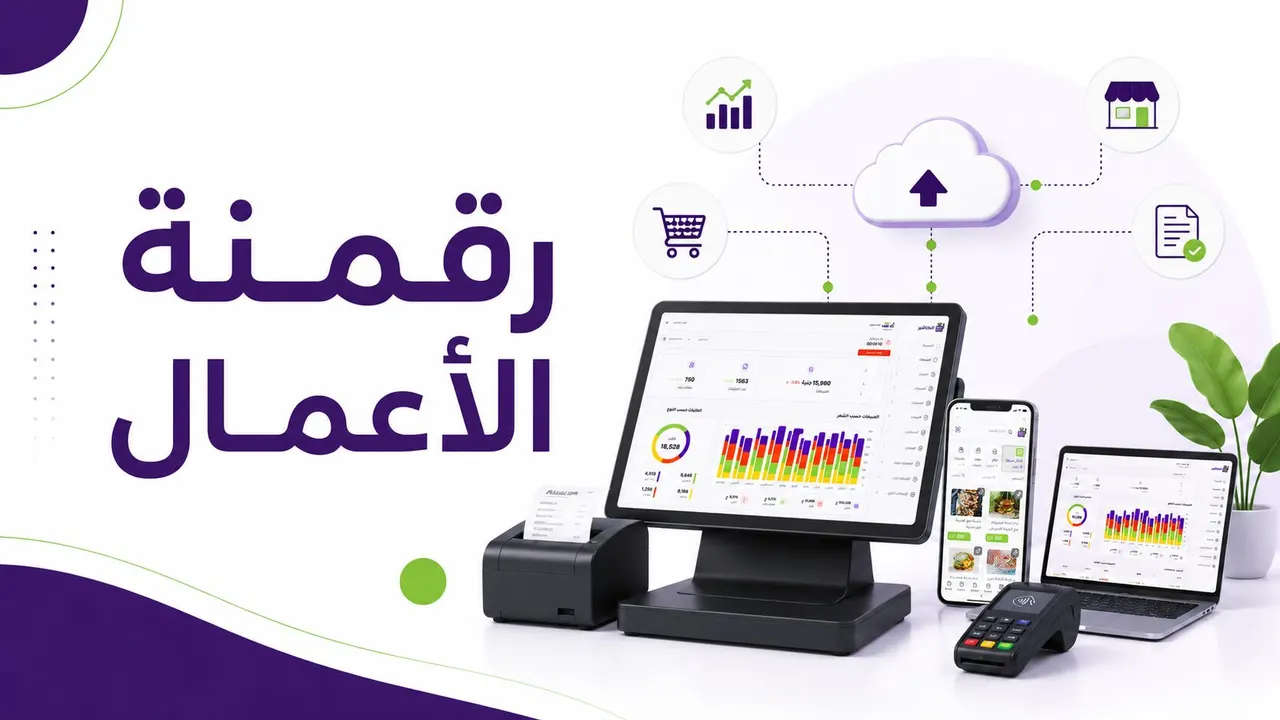
For example, Alcashier, as an integrated cloud point of sale system, lets you manage sales, inventory, expenses, and staff, with support for working online and offline, and for both Arabic and English. This makes it suitable for stores, restaurants, cafés, and businesses that need flexible, fast daily management.
Why does your business need point of sale software?
Using suitable point of sale software helps you cut down the daily chaos inside the store. When sales are in one place, inventory in another file, expenses in a separate notebook, and staff performance is unclear, decision-making becomes harder. Over time, problems can appear such as running out of products without warning, invoice discrepancies, pricing mistakes, or difficulty knowing which products are the most profitable.
A point of sale system solves these problems by unifying the data. Every sale directly affects inventory, every order appears in the reports, every employee's performance can be tracked, and every branch can be monitored separately or together. This visibility makes managing the business more professional, and lets the owner make decisions based on real data rather than guesswork.
Having modern cashier software also helps improve the customer experience. Fast order entry, accurate invoices, multiple payment methods, easy delivery, and order status updates all make the customer feel the store is organised and trustworthy.
Who should use cashier software?
Modern cashier software suits most businesses that sell products or services directly to customers. Small and medium stores can use it to manage products, inventory, and daily sales. Restaurants and cafés can use restaurant cashier software to organise the menu, receive orders, manage dine-in, takeaway, and delivery orders, and track sales by product or by cashier.
The system also suits kiosks and mobile points of sale, especially when work is fast-paced and orders and invoices need to be recorded without complexity. Businesses that have a website or want to receive orders online need a system that connects the website, the dashboard, and the point of sale, so the team does not have to enter orders manually more than once.
In other words, whether you run a shop, a restaurant, a café, an online store, a single branch, or several branches, a point of sale system can be the main operating hub of your business.
What should you know before starting with a point of sale system?
Before you start using any POS software, it is important to define your business needs clearly. Ask yourself: do you have one branch or more? Do you sell only in the store, or do you take delivery orders? Do you need precise inventory management? Do you have staff with different permissions? Do you need a website to receive orders?
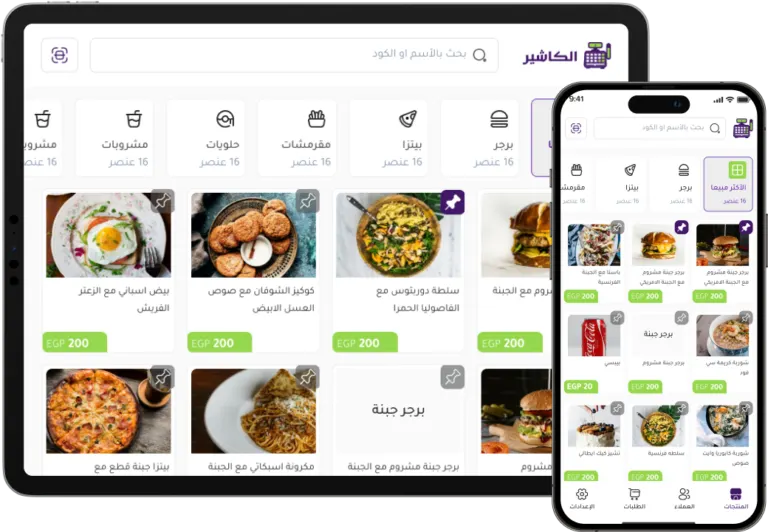
Answering these questions helps you set up the system correctly from the start. For example, a restaurant needs clear menu categories, modifiers on products, order types such as dine-in, takeaway, and delivery, and possibly delivery drivers. A retail store may need to organise products by category, track quantities, get low-stock alerts, and support barcodes and thermal printers.
The clearer the initial setup, the easier the system is to use and the more accurate the reports.
An overview of Alcashier as a modern point of sale solution
Alcashier is an integrated cloud point of sale system designed to help store owners manage sales, inventory, expenses, and staff easily and effectively. The system works online and offline, which means the store can keep recording sales even when the internet goes down, and the data is then synced automatically when the connection returns.
Alcashier offers an interface in Arabic and English, an important feature for businesses in the Saudi and Gulf market, where some staff need an easy Arabic interface while others prefer English. The system also supports managing branches and cashiers, setting up invoices, organising products, receiving orders from the website, and producing reports that help the owner follow daily performance.
Steps to get started with Alcashier
Create an account on the official website
The first step is to visit the Alcashier website through the official link:
https://alcashier.com
Once on the website, you can click “Create account” or “Start free now”. This step begins the setup of your store's point of sale system, and it does not usually require complicated procedures.
In the sign-up form, you enter basic details such as your username, store name, email, country, mobile number, city, password, and password confirmation. After filling in the details, click “Create account” to move on to store setup.
This stage is important because the details you enter at the start help tailor the system to your location and type of business.
Set up your basic store details
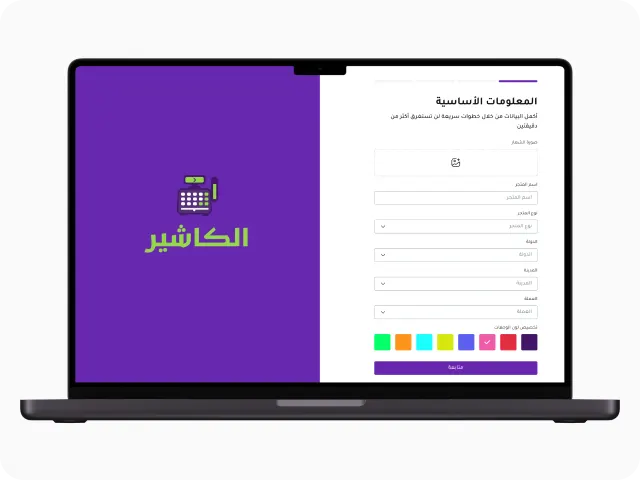
After creating the account, the store setup page appears. Here you start building your business's core identity in the system. You can upload the store logo, enter the store name, choose the business type, and set the country, time zone, city, neighbourhood or area, and the currency used.
You can also choose the colour of the system interface, a simple step that helps make the experience closer to your brand identity. Having a logo and correct details from the start makes invoices, the website, and the dashboard look more professional.
At this stage it is best to make sure the store name is written the way you want customers to see it, because it may appear on invoices, in the interface, or on the linked website.
Set up invoices and payment methods
The invoice is an important part of the sales experience, whether the customer buys in the store or through an online order. That is why the point of sale system lets you configure invoice settings to suit your business.
You can set the accepted payment methods, such as cash, Mada, STC Pay, bank transfer, or any other method available in the system. You can also set up delivery methods if your business receives external orders or works in restaurants, cafés, or stores that offer delivery.
Setting up payment methods clearly helps the cashier or employee record payments correctly, and helps the business owner see the breakdown of sales by payment method later in the reports.
Set up branches
If you have only one branch, you can set up the main branch and enter its basic details. If you run more than one branch, you can add several branches within the same account, and follow each branch's performance separately or together.
Adding branches correctly helps you see each branch's sales, its related orders, its cashiers, and the staff working in it. This is very important for businesses that operate in more than one location, because branch performance may differ by city, area, number of customers, or type of products in demand.
When adding a branch, it is best to use clear names such as “Riyadh branch, Al Olaya” or “Jeddah branch, Al Tahlia”, so reports are easy to read and branches are not confused.
Add product categories
Before adding products, it is best to create organised categories. Categories are the sections that appear on the sales screen or the online menu. In restaurants, categories might be starters, drinks, main dishes, and desserts. In stores, they might be devices, accessories, clothing, offers, or best sellers.
Categories help staff find a product quickly during a sale, and help customers browse the website easily if your store is linked to an online interface.
The clearer and shorter the categories, the better the sales experience. Avoid long or similar categories, and try to make each category reflect a real section of your business.
Setting up products and the menu in Alcashier
Add a new product
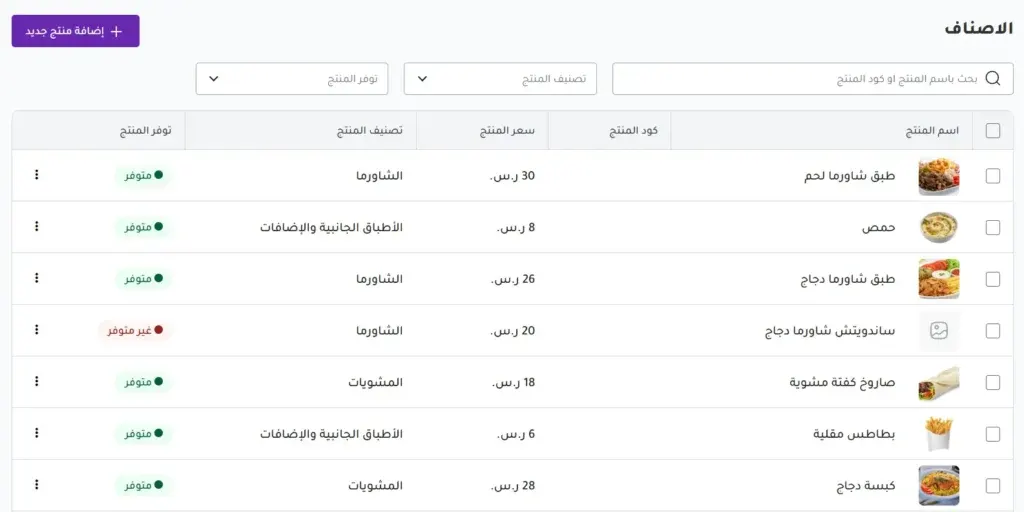
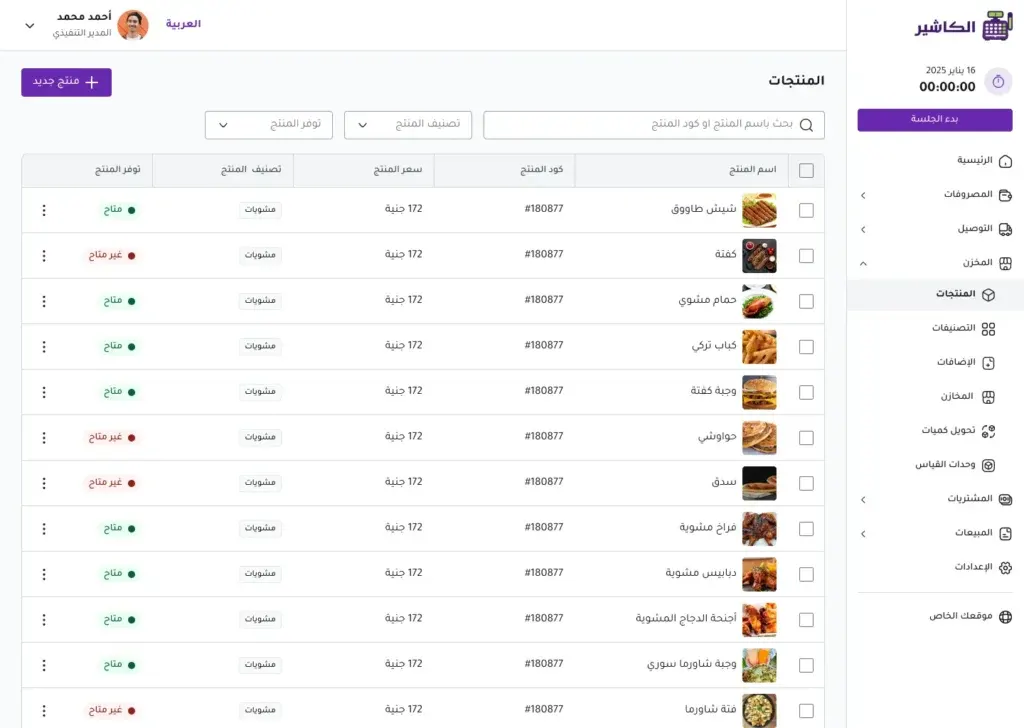
Setting up products is one of the most important steps in getting started with cashier software. From the dashboard, go to the Warehouse section, then Products, then click “Add New Product”.
When adding the product, you enter the product name, the product image if available, a short description, the right category, modifiers, and the price. In restaurants and cafés, modifiers can include size, flavour, side extras, or preparation options. In stores, they may include colour, size, or product type.
It is best to write the product name in a way that is clear and easy for both staff and customers. Instead of using unclear internal names, use direct names such as “Small caffè latte”, “Bluetooth headphones”, or “Chicken burger meal”.
Organise categories and link products
After creating the categories, you need to link each product to the right category. This step makes the sales screen more organised and saves staff time when recording orders. When the cashier enters the POS screen, they can choose the category and then the product quickly without a long search.
Categories are also reflected on the website if displaying products online is enabled. So think about the customer experience too. Will the customer know where to find the product? Is the category clear? Are products arranged in a logical way?
Good product organisation reduces sales errors and makes the online menu look more professional.
Update products and prices
It is normal for prices to change, for some products to be discontinued, or for new products to appear. That is why sales management software lets you edit products at any time. You can change the price, edit the description, update the image, change the category, or turn the product's visibility on the website on or off.
The link between the point of sale system and the website means any update made in the system is reflected on the connected channels, without having to enter the data again manually.
Tips for setting up products more professionally
Use clear images if your business depends on online orders, especially in restaurants and cafés. A good image can help the customer decide to buy quickly. Keep names short and clear, and avoid internal codes that customers do not know. Add a useful description when needed, especially for products with ingredients, sizes, or multiple options.
Also make sure to review prices before publishing products, because any price mistake can affect sales or cause confusion for staff and customers.
Connecting your store to a website to receive orders
Why do you need a website connected to Alcashier?
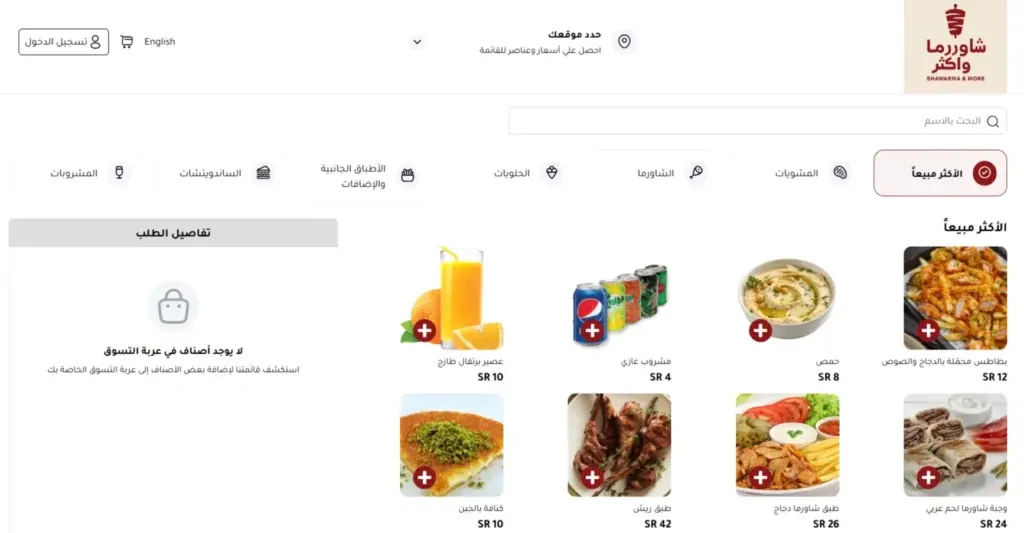
Having a website connected to the point of sale system gives your business an additional sales channel. Instead of receiving orders by phone or messages and then entering them manually, customers can visit your website, browse products or the menu, add the order to the cart, and choose pickup or delivery.
The order then appears directly in the system, which reduces errors and saves staff time. This feature is very important for restaurants, cafés, and stores that want to receive orders online without complications.
Enter the website information
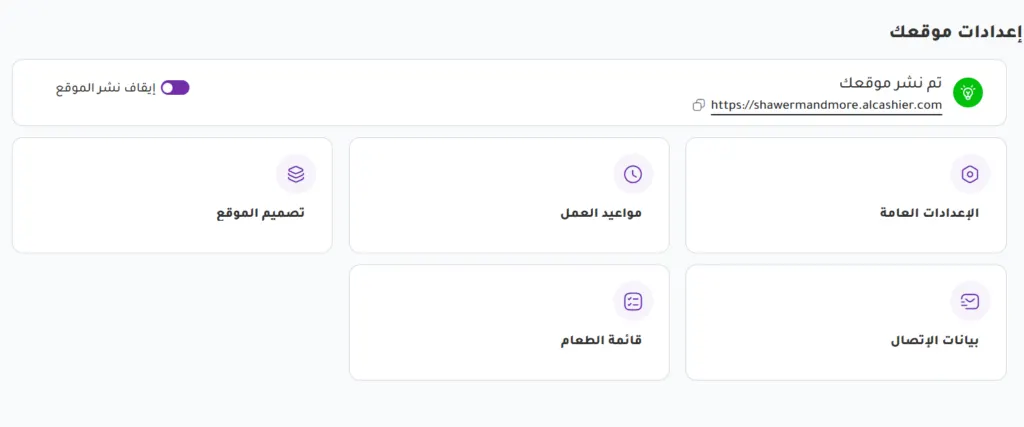
From the website settings inside the system, you can enter the website name, which is the name visitors see, and the domain name, which is the address customers use to reach the website.
Choose a name that is clear and easy to remember. If your store name is well known, it is best for the domain to be as close to it as possible, because this builds trust and makes it easier for customers to come back to the website later.
Set working days and hours
The system lets you set working days and the hours during which orders are received. You can choose days such as Sunday to Thursday, or every day of the week, and then set the working hours for each day.
An important feature at this step is that the system can automatically stop receiving orders outside working hours. This helps you avoid receiving orders when the store is not ready, and improves the customer experience because they know when they can order.
Working hours can be changed later depending on seasons, offers, or holidays.
Customise the website colours
Customising the website colours helps unify your business's visual identity. You can choose a main colour for the interface, and perhaps a colour for the background or buttons. These colours appear in different parts of the website, such as menus, buttons, and important elements.
A simple, clear design makes the customer experience better, especially when ordering from a phone. So it is best to choose comfortable colours, with clear contrast between text and buttons.
Enter contact information
It is important for customers to find an easy way to contact your store. You can add a mobile number and links to social media accounts such as Instagram, Facebook, WhatsApp, or Twitter when needed.
Showing this information on the contact page increases customer trust, and helps them get in touch if they have a question about an order, delivery, or products.
Set up the online menu
The online menu relies on the products you have added in the system. You can turn each product's visibility on the website on or off, and choose to show only certain items. This flexibility is important, because some products may be available for sale in the branch only, while others suit online orders.
When setup is complete, you can publish the website so it is ready to receive orders from customers according to the working hours you set. All settings can be changed later from the dashboard.
Managing cities, neighbourhoods, and delivery areas
The importance of managing delivery zones
If your business offers delivery, setting up cities, neighbourhoods, and delivery areas from the start is a necessary step. Clear data helps set the delivery cost accurately, reduce address errors, and organise orders by the customer's location.
Without a clear delivery system, the team may face problems such as accepting an order from an area you do not cover, calculating the wrong delivery cost, or struggling to tell which area an order belongs to.
Add cities
From the settings, you can go to the cities section and add a new city. You choose the country, enter the city name, and set the availability status, whether available or unavailable.
This flexibility is useful if the store currently works in one city but plans to expand later. You can also disable a city temporarily if the store is not receiving orders from it for a certain period.
Add neighbourhoods and areas
After adding the city, you can add the neighbourhoods or areas that belong to it. You enter the area name, choose the related city, set the delivery area, and set the availability status.
Linking an area to a specific delivery area helps calculate the delivery cost automatically when completing the order. It also makes the customer experience clearer, because the website can show only the areas that are available.
Set delivery areas and costs
In the delivery section, you can create new delivery areas and set the area name, the related city, the delivery cost, and the availability status. The system then uses this data automatically when an order is placed.
The benefit of this step is not limited to calculating cost. It also helps organise drivers better, see which areas have the most demand, and analyse delivery performance using the data.
Managing branches and cashiers in the system
Add branches
Branches represent the real working locations in the system. You can add a new branch from Settings, then manage branches, then enter the branch name, city, mobile number, delivery range in kilometres, and branch status.
The branch status can be available or unavailable. This feature is important if you want to temporarily stop a branch from receiving orders because of maintenance, holidays, or operational pressure.
Add cashiers
A cashier here represents an independent point of sale inside the branch. You can have one cashier in the branch or more than one, depending on the size of the business and the number of staff.
When adding a new cashier, you enter the cashier name, link it to a specific branch, and set the availability status. It is best to name cashiers clearly, such as “Cashier 1, Riyadh branch” or “External orders cashier”, so reports are easy to understand.
Start a sales session
When logging in, the user chooses the branch and the cashier they will work from, then starts the session. This step links every sale to the branch, the cashier, and the employee, which makes tracking sales more accurate.
If you have more than one cashier in the branch, tracking sales by cashier helps you understand the performance of each point of sale, the number of orders, and the total sales value.
Creating orders manually from within the system
Start the session
Before receiving orders, you need to choose the branch and the cashier and then click “Start session”. This step makes the system ready to record sales correctly and link them to the reports.
Create a new order
From the Sales section, choose Orders, then click “New Order”. The order screen appears, with products by category, as well as the most-ordered products for easier access.
The employee selects the requested products, sets the quantity, and adds modifiers if any. In restaurant cashier software, modifiers are an important part of the ordering experience, because they allow the product to be customised to the customer's wishes.
Choose the customer
You can choose an existing customer from the database, or enter the details of a new customer such as name, mobile number, and full address. For delivery orders, customer details are essential to make sure the order arrives correctly.
For dine-in orders at the restaurant, entering customer details may not be necessary if there is no delivery or later follow-up with the customer.
Choose the order type
The system supports different order types such as Delivery, Pickup from the branch, Dine In, or Takeaway. Choosing the order type helps organise the workflow inside the store or restaurant.
For delivery, you can enter the delivery fee if one applies. You can also assign a delivery driver later and follow the order status until it is delivered.
Payment and issuing the invoice
After confirming the order, click “Pay”, then choose the payment method, enter the amount paid, and add a discount if there is one. The system calculates the remaining amount automatically, and you can set the payment status, whether collected or still pending collection.
After the transaction is complete, the invoice appears and can be printed right away. Support for thermal printers and barcode devices makes selling faster and better suited to stores and restaurants.
Track the order status
From the Orders page, you can change the order status as it progresses. The status may be In preparation, Ready, Out for delivery, Delivered, Unassigned, or Rejected. You can also view the edit history, which adds transparency and helps review operations when needed.
Once the order is complete and payment is confirmed, it automatically appears in the dashboard reports.
Receiving orders from the website
When your store is connected to a website, the customer can browse the menu or products, add items to the cart, choose the order type, enter delivery details, and select the payment method. After the order is sent, it appears directly in the Alcashier system in the Online Orders section.
This approach reduces pressure on staff, because the customer enters their own details. It also reduces the order-entry errors that can happen when relying on phone calls or messages.
Once the order reaches the system, the employee can review it, assign a delivery driver if it is a delivery order, update the status from In preparation to Ready, then Out for delivery, then Delivered, and confirm payment if it was not paid in advance.
The main advantage here is that online orders are included in the reports, which helps the business owner see how many orders come from the website, their total value, and the most-ordered products online.
Managing staff and permissions
Add a new user
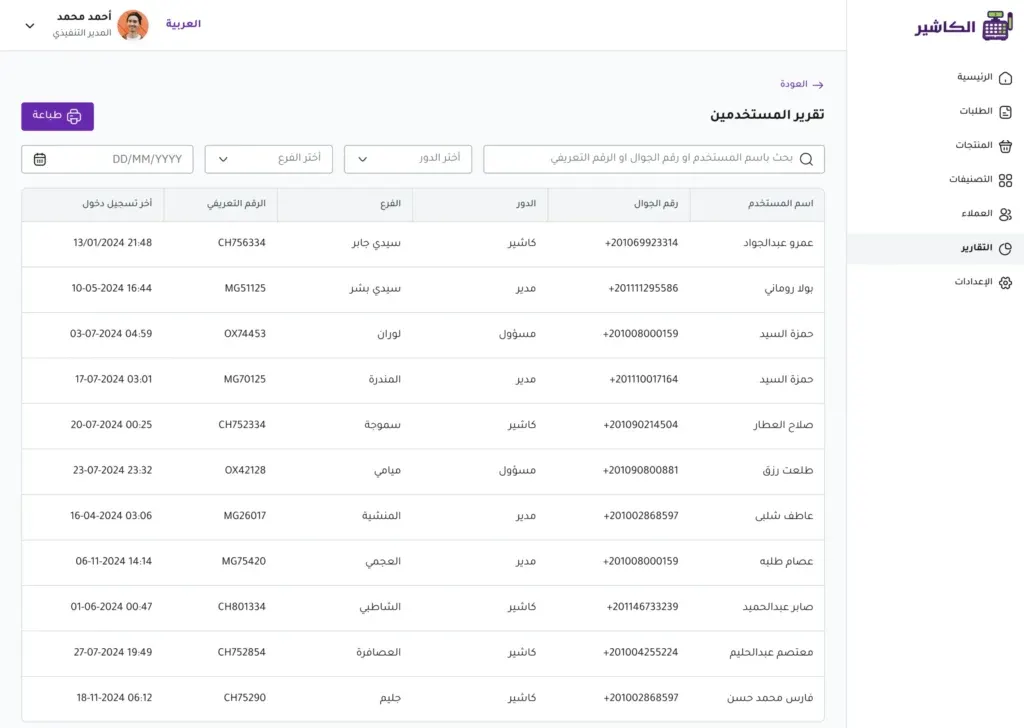
A modern point of sale system helps organise the team by creating accounts for staff and setting their permissions. From Settings, you can choose “Add New User”, then enter the username, full name, mobile number, and password.
It is important to save the employee's login details, especially the password, so they can access the system according to the permissions set for them.
Choose the right role
You can assign different roles such as Admin, Store Owner, or Cashier. The Admin has full permissions to manage the system, while the Store Owner has specific administrative permissions, and no more than one user can be assigned this role. The Cashier has limited permissions, only to carry out sales.
Dividing permissions protects the business's data and stops staff from reaching sections they do not need. Not every employee needs to see profit reports, system settings, or the data of all branches.
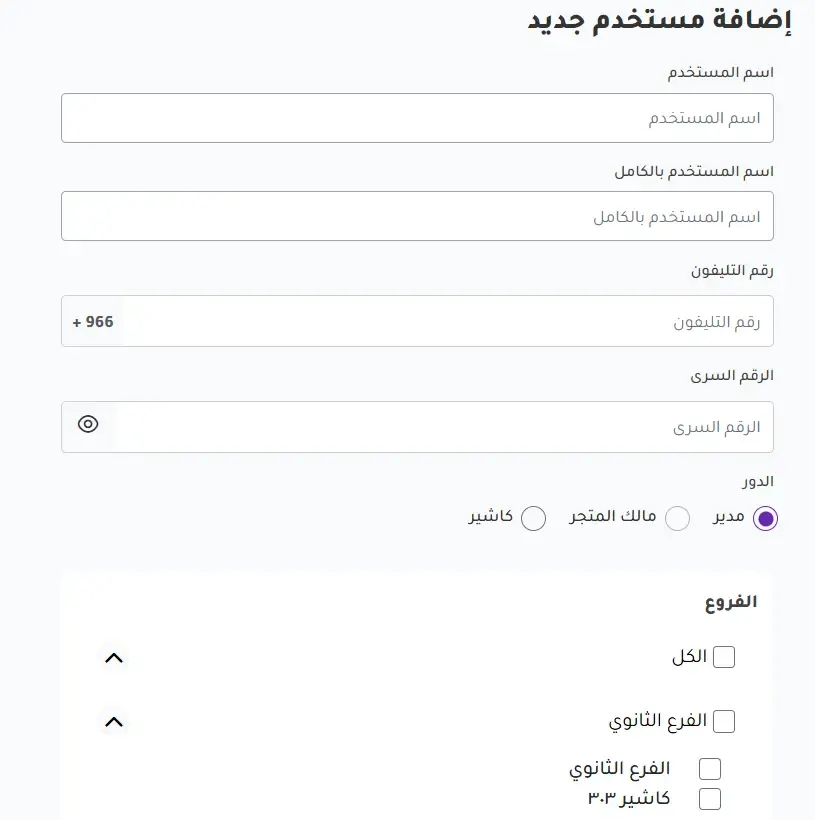
Link the employee to the branch and cashier
After choosing the role, you can link the employee to the branch they work in and to the related cashier if they are a sales employee. This link makes the operations the employee carries out appear accurately in the reports.
When any sale is made, the employee's name appears next to the invoice or session, which helps management follow performance and review operations when needed.
Managing customers and analysing buying behaviour
Add customers
Customer management is an important part of any sales management software. You can add a new customer from the Sales section, then Customers, entering the name, mobile number, and full address, including city, area, street, building number, apartment number, and any additional notes.
Saving customer details helps speed up future orders, especially for delivery, since the order can be linked to the customer directly without re-entering the details each time.
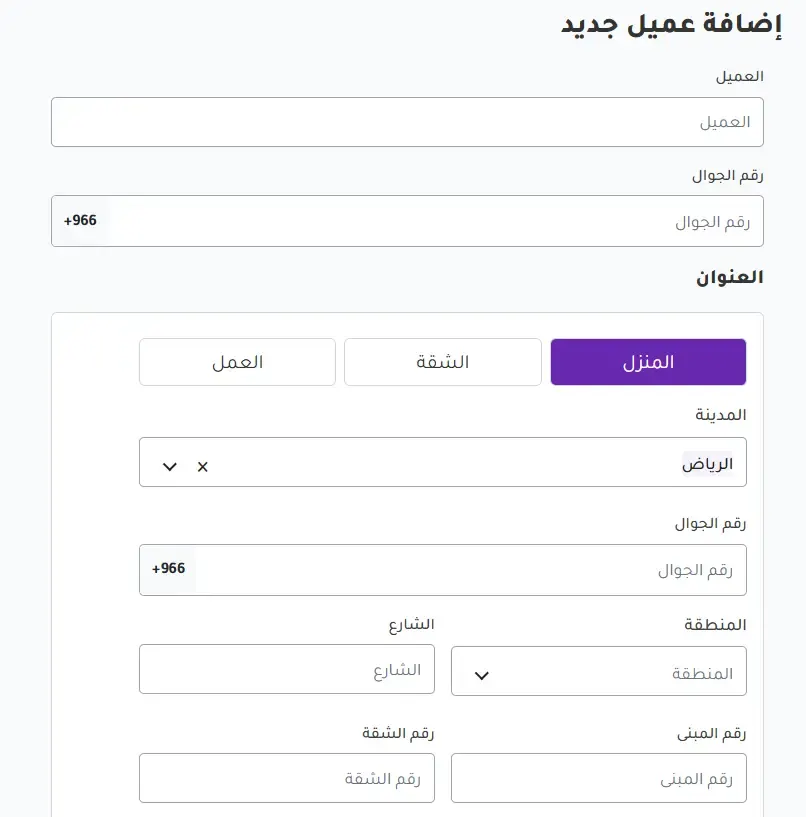
Save customer details from the website
If a customer orders from the website, they enter their details while completing the order. This information is saved automatically in the system, building a customer database over time.
This data can be used to understand active customers, returning customers, and the customers who order the most. It also helps in offering personalised deals or loyalty programmes later.
Analyse customers from the dashboard
The dashboard provides statistics such as the number of new customers, existing customers, returning customers, top-ordering customers, the number of orders per customer, and the total value of orders.
This information helps you answer important questions such as: who are my best customers? Which areas order the most? Do customers come back to buy again? Which products do customers order repeatedly?
Managing delivery drivers
If your business offers delivery, managing drivers inside the system helps organise the process from receiving the order to handing it over. You can go to the Delivery section, then Delivery Men, then add a new driver.
You enter the driver's photo, full name, mobile number, city, and availability status. You can change the driver's status to available or unavailable depending on working conditions.
After adding the driver, you can assign them to delivery orders coming from the website. Only available drivers appear in the assignment list, which makes distributing orders easier and more organised.
This feature helps you follow order status, improve delivery speed, distribute work among drivers, and offer a more professional experience to the customer.
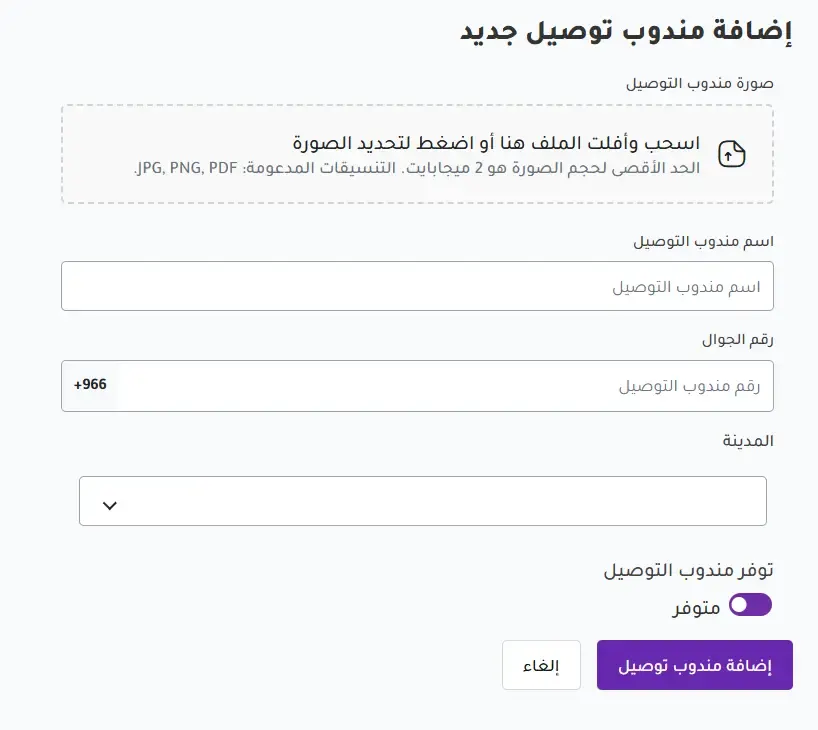
The dashboard and reports
Sales reports
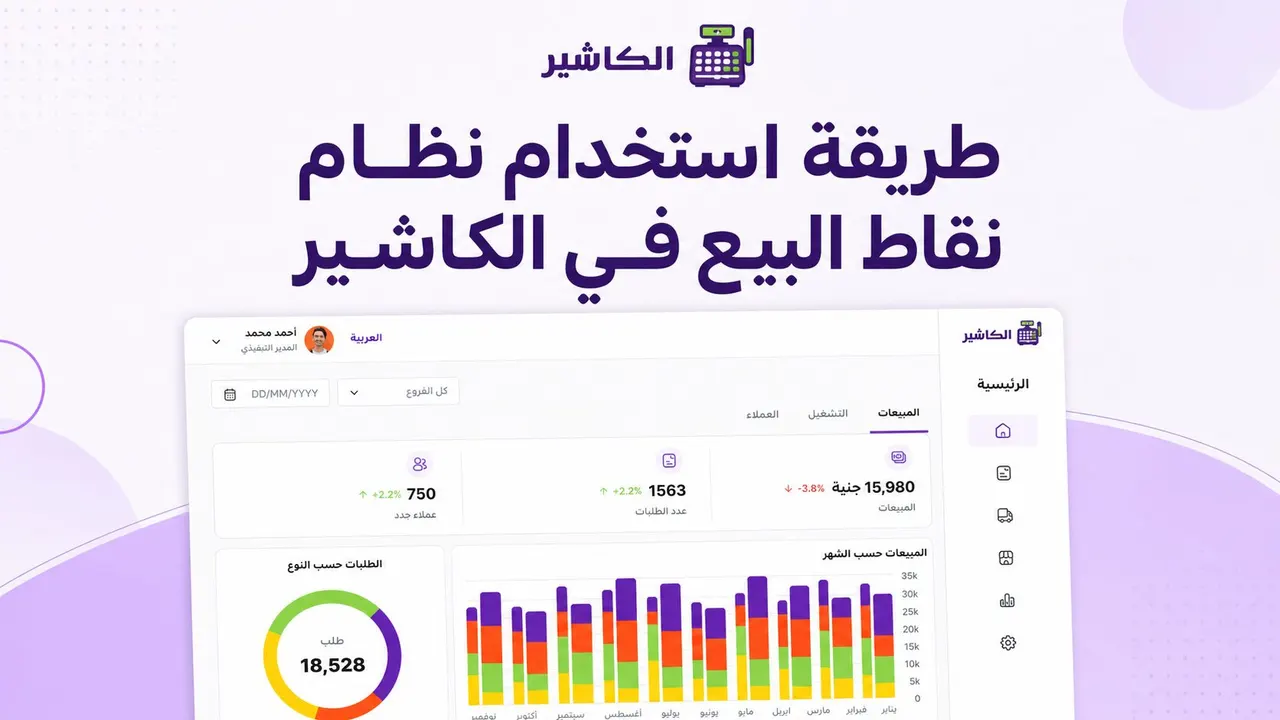
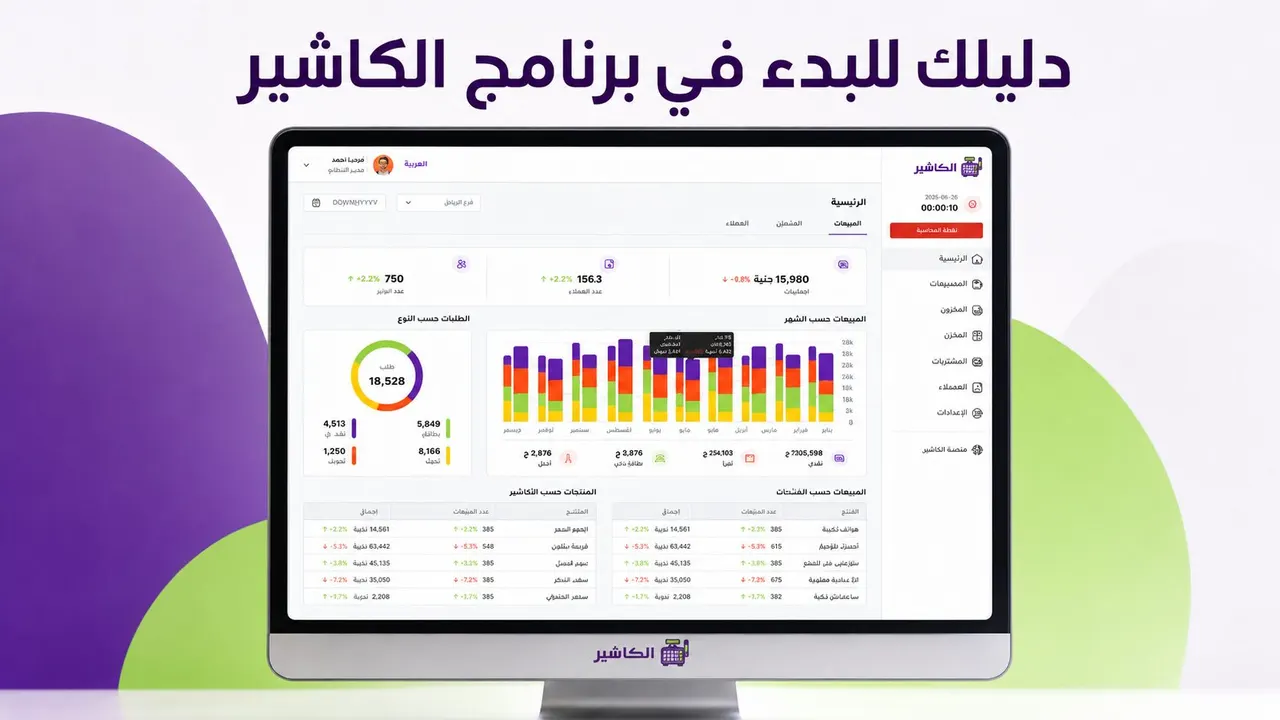
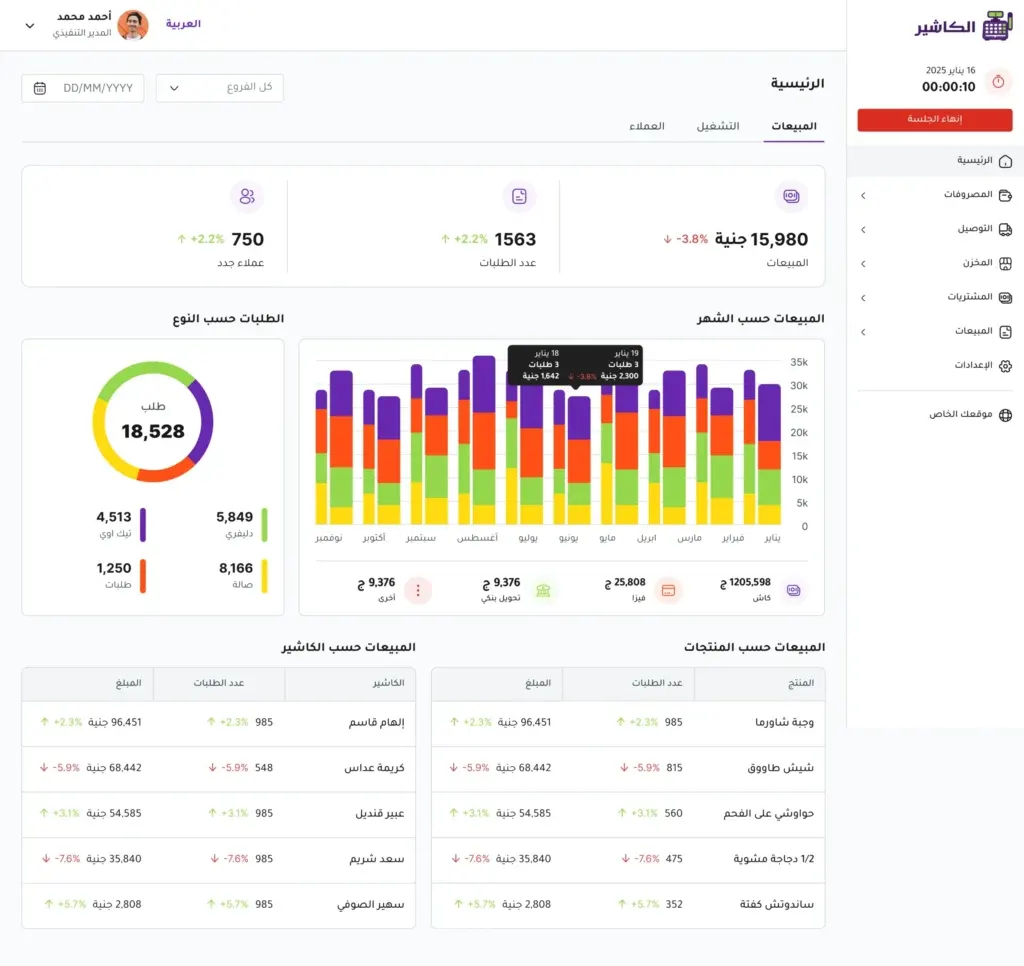
The dashboard is the hub for monitoring and analysis in the point of sale system. Through it, you can see total sales, the number of orders, and the number of new customers. Charts also show sales performance by payment method, such as cash, card, bank transfer, or STC Pay.
You can also analyse orders by type, such as dine-in orders, pickup orders, and delivery orders. This data helps the business owner understand the nature of orders and make suitable decisions, such as increasing the number of delivery staff or improving the dine-in ordering experience.
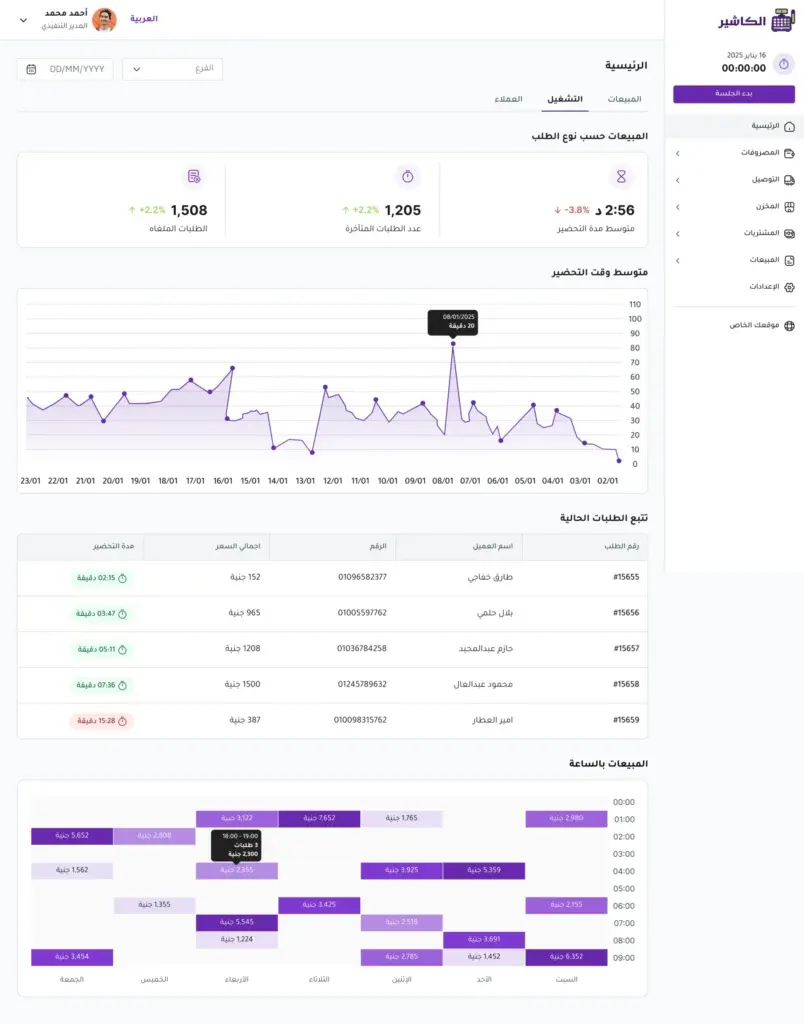
Sales by product and by cashier
The sales by product report shows the product name, quantity sold, and total sales value. This report is important for knowing the most-ordered products, the weak products, and the items worth promoting or repricing.
The sales by cashier report shows the cashier name, the number of orders, and the total sales value. This data helps evaluate the performance of points of sale and staff objectively.
Customer and area reports
Customer reports help analyse buying behaviour. You can see new, existing, and returning customers, as well as the top-ordering customers. You can also view sales by geographic area, which helps you understand which cities or neighbourhoods generate the highest demand.
This information is useful for marketing, expansion, delivery management, and improving offers.
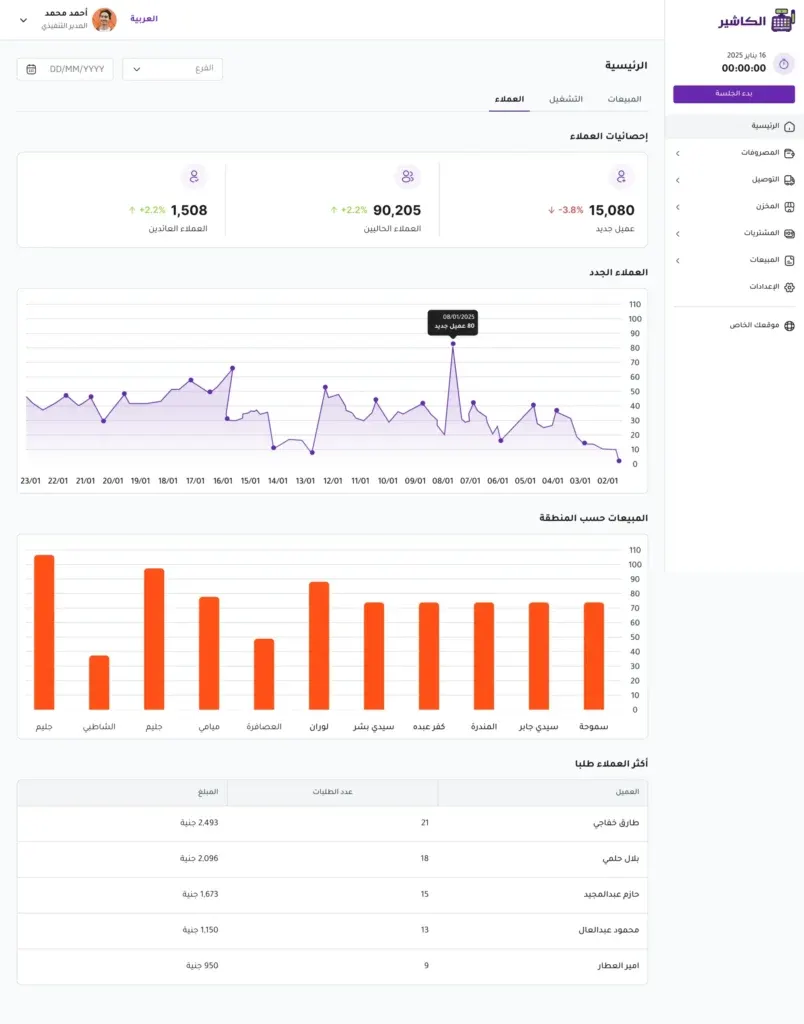
Filter options
You can customise reports by branch and time period. You can view data for today, the last 7 days, this month, this year, or a custom range by setting a start and end date.
The more regularly a business owner uses these reports, the better they can understand their business and make decisions based on real data.
Working online and offline
One of the most important advantages of modern POS software is the ability to work even when the internet goes down. In some businesses, an internet outage can stop selling completely if the system relies only on a constant connection. That is why Alcashier offers the ability to work online and offline, so orders and sales keep being recorded, and data is then synced automatically when the connection returns.
This feature is important for stores that work during peak hours, restaurants, kiosks, and mobile points of sale. It gives the team more flexibility and reduces the chance of operations stopping because of a temporary technical problem.
Best practices after setting up the system
After finishing the basic setup, it is best to train staff to use the system before relying on it fully during peak hours. Every employee should know how to start a session, record an order, choose a payment method, issue an invoice, and update the order status.
It is also important to review products and prices regularly, and to update product availability so customers do not order an unavailable product. You should also review reports regularly, because the real value of sales management software appears when the business owner uses the data to improve operations.
Take care to name branches, cashiers, and products clearly, set permissions precisely, and set up delivery areas in an organised way. These small details make a big difference to the accuracy of reports and ease of use.
How does Alcashier help your business grow?
Alcashier helps store and restaurant owners move from traditional management to organised digital management. When sales, inventory, orders, customers, staff, and reports are in one system, running the business becomes easier and clearer.
Connecting the store to a website also gives the business a chance to receive orders online, which matters in the modern market, especially as customers rely more on ordering over the internet. With support for Arabic and English and for working online and offline, the system suits different work environments and diverse teams.
Most importantly, Alcashier is not just a single tool, but helps build an integrated operating system that lets the business owner follow, analyse, and develop their business with confidence.
Manage your sales and inventory in seconds with Alcashier!
Control sales, inventory and users in moments, and give your business an integrated system that runs smoothly without complexity.
Create your store for freeFrequently asked questions (FAQ)
What is the difference between cashier software and a point of sale system?Cashier software is the common name for the tool a store uses to record sales and issue invoices. A point of sale system is the broader concept that may include sales, inventory, customers, staff, branches, reports, and online orders. In modern systems, integrated cashier software has become part of a comprehensive point of sale system.
Can point of sale software be used without internet?Yes, some modern systems support working offline. In this case, sales and orders keep being recorded, and the data is then synced when the connection returns. This feature is important for stores and restaurants that cannot stop selling when the internet goes down.
Is POS software suitable for restaurants and cafés?Yes, especially if the system supports an online menu, modifiers, order types such as dine-in, takeaway, and delivery, and delivery driver management. That is why many restaurant owners look for restaurant cashier software that helps them organise orders, reduce errors, and speed up service.
Can cashier software be connected to a website?Yes, some modern point of sale systems can connect the store to a website to receive orders directly from customers. In this case, the products or menu appear on the website, the customer sends the order, and it then appears in the dashboard without manual entry.
What is the most important feature to look for in point of sale software?The most important features are ease of use, inventory management, sales reports, invoice support, multiple payment methods, permissions, and online and offline operation. Priorities vary by type of business, but these elements are essential for most shops and stores.
Conclusion
Getting started with modern cashier software is an important step for any store, restaurant, or café owner who wants to run their business in a more organised and professional way. A point of sale system is no longer just a screen for recording invoices; it has become a platform that helps you manage sales, inventory, branches, cashiers, staff, customers, orders, delivery, and reports from one place.
The more correctly the system is set up from the start, the easier daily operations become, the more accurate the data is, and the faster decisions are made. That is why it is important to take care in preparing the store details, organising products, setting up branches and cashiers, defining permissions, setting up delivery, and following reports continuously.
Alcashier is an example of a modern point of sale software that suits market needs, by working online and offline, supporting Arabic and English, connecting a website, and managing the core operations a business needs every day. If you are looking for POS software that helps you start in an organised way, choosing an integrated system like Alcashier can be a strong step towards easier management and clearer growth.
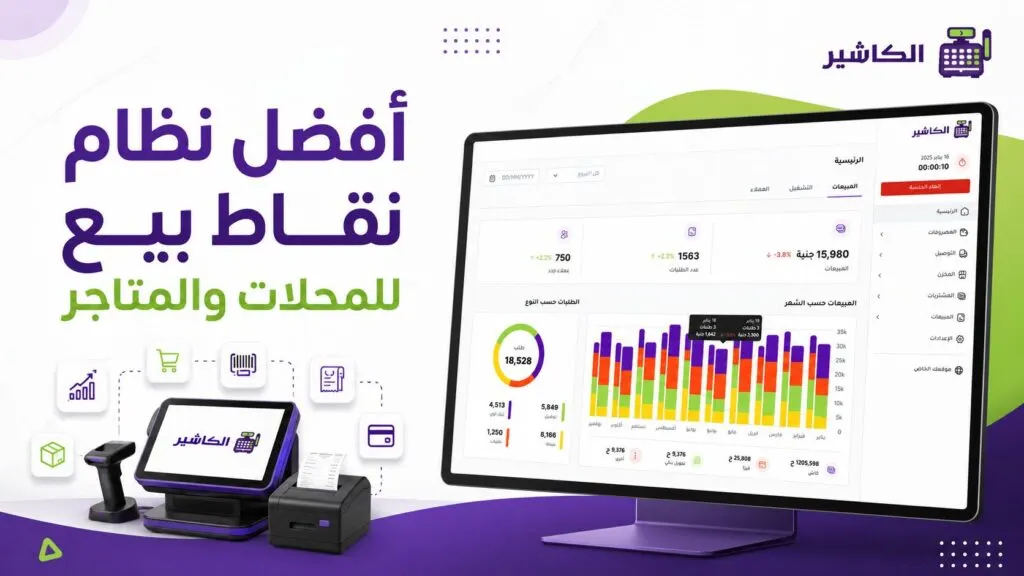
The best point of sale system for shops and stores
Choosing the best point of sale system for shops and stores is no longer just a technical decision, but a management decision that directly affects the speed of…
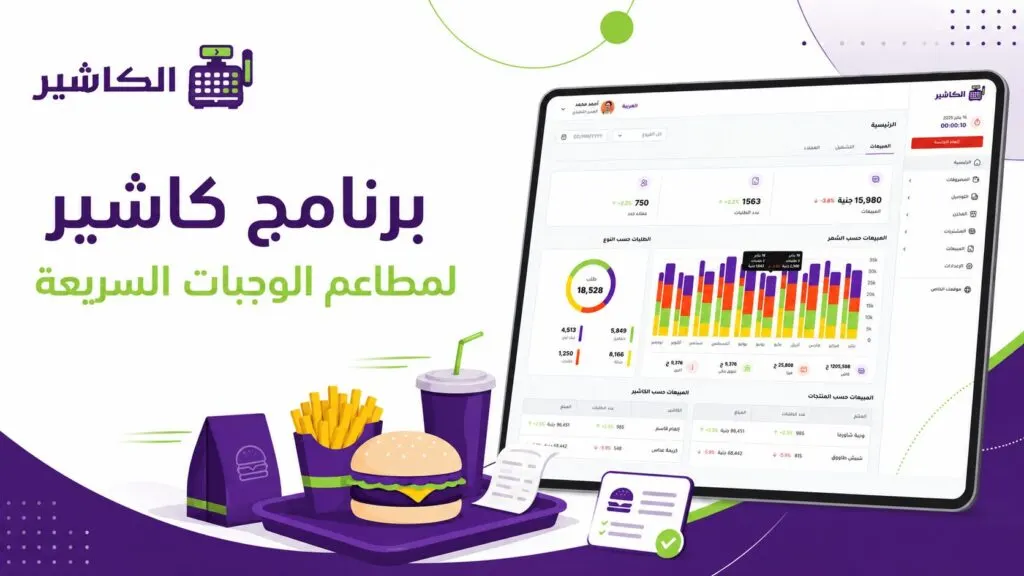
Cashier software for fast food restaurants: which features do you really need?
Running a fast food restaurant is not as simple a task as it looks from the outside. Customers expect fast service, accurate orders, flexible payment and an experience…

Types of restaurants and the best cashier software for each
No two restaurants work in exactly the same way. A fine dining restaurant that welcomes guests at elegant tables is radically different from a…
The post Cashier software: your guide to getting started with a point of sale system appeared first on Cashier Software.